Dell Laptop Caps Lock Blinking: What the LED Pattern Means


A Dell laptop that suddenly stops starting can be frustrating, especially when the Caps Lock light begins blinking repeatedly and the screen remains black. Many users assume that the keyboard is faulty, but a blinking indicator can sometimes point towards a hardware or startup problem that needs proper diagnosis.
Dell Laptop Caps Lock Blinking is a symptom worth investigating, particularly when it occurs alongside a black screen, power failure, unexpected shutdown or unsuccessful boot attempts.
Dell laptops use different diagnostic indicators depending on their model and generation. These indicators can help identify problems involving memory, the processor, motherboard, BIOS and display components. Understanding what the LED pattern means can help you identify the possible cause and decide what to do next.
In this guide, we will explain common LED patterns, possible reasons behind the issue, troubleshooting methods and when professional laptop repair may be necessary.
What Does Dell Laptop Caps Lock Blinking Mean?
A blinking Caps Lock light on a Dell laptop may indicate a keyboard status change or a hardware diagnostic condition, depending on the laptop model.
On supported Dell models, diagnostic indicators use specific blinking sequences to identify potential hardware failures during the Power-On Self-Test (POST). POST is an internal checking process that takes place when you switch on your laptop.
If the system detects a problem during startup, it may stop booting and display an LED or beep code.
However, it is important to understand that not every blinking Caps Lock light represents a hardware fault. Some Dell models use the Caps Lock indicator only to show whether the Caps Lock function is enabled.
Therefore, checking your exact laptop model and its diagnostic documentation is essential before interpreting a blinking pattern.
Common Dell Laptop LED Patterns and Their Meanings
Dell uses different diagnostic systems across its Inspiron, Latitude, Vostro, XPS and Precision laptop ranges. On many newer models, diagnostic codes are displayed through amber and white LED flashes.
Here are some examples of diagnostic patterns documented for supported Dell laptop models.
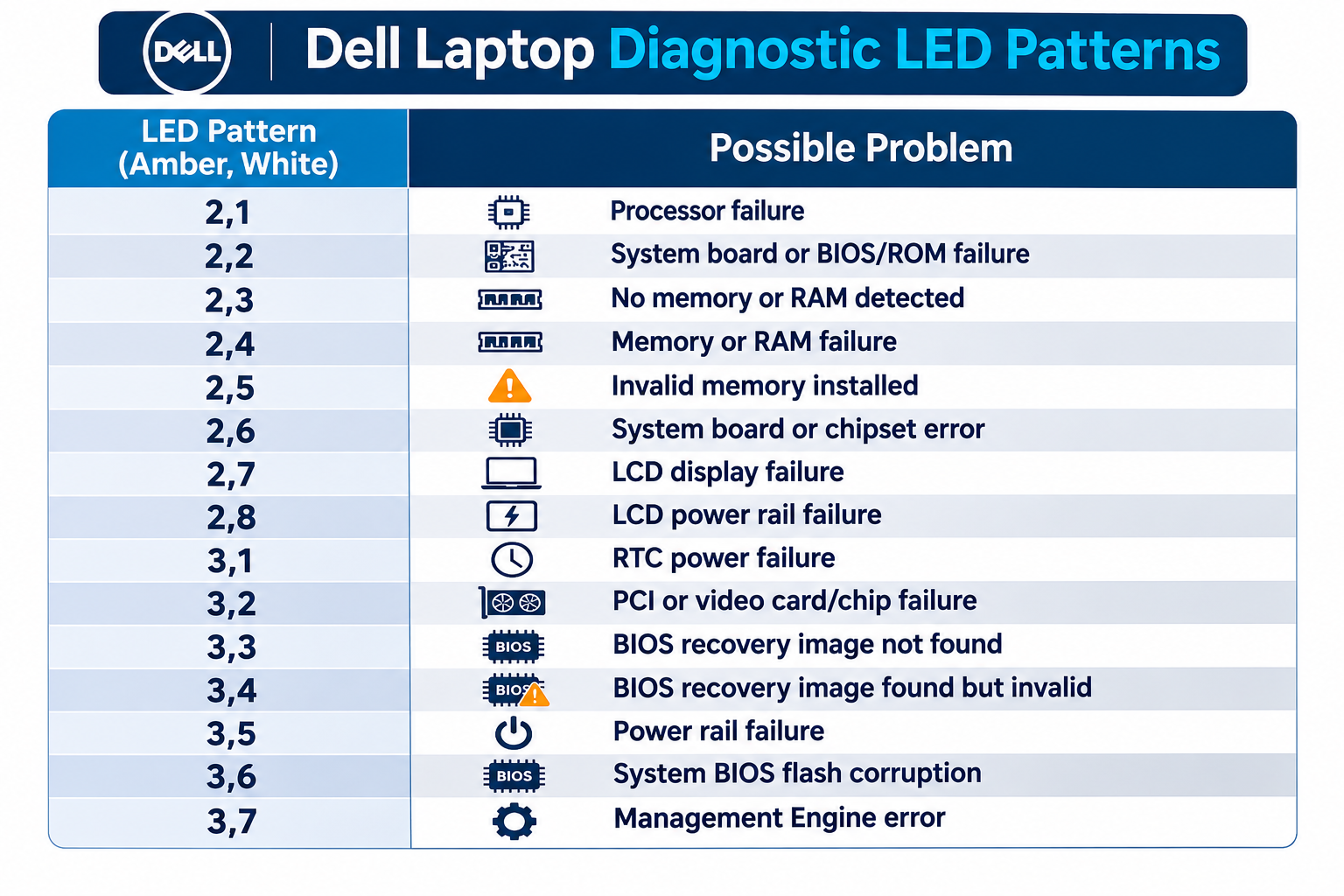
Important: These are examples of Dell diagnostic codes, not universal Caps Lock blink codes. Their location, colour and meaning depend on the particular model and diagnostic test. Always refer to the relevant Dell service manual before interpreting them.
7 Common Reasons Behind the Dell Caps Lock Blinking Problem
The Dell Caps Lock Blinking Problem can have several possible causes. Understanding these causes can help narrow down the issue.
1. RAM or Memory Failure
Faulty, loose or incompatible RAM can prevent a Dell laptop from completing its startup process.
You may notice:
- Laptop powers on but displays a black screen.
- Caps Lock or diagnostic indicators start blinking.
- Laptop fails to boot into Windows.
- Startup becomes inconsistent.
A technician can check the memory modules, reseat compatible RAM and test individual modules to identify the problem.
2. Motherboard Problems
The motherboard connects and controls important laptop components. A fault involving its power circuits, chipset or other components can prevent normal startup.
Possible symptoms include repeated blinking indicators, unexpected shutdowns, no display and failure to complete POST.
Motherboard problems require proper electronic diagnosis before deciding whether component-level repair or board replacement is necessary.
3. BIOS Corruption
BIOS or UEFI firmware helps initialise the laptop hardware during startup.
If the BIOS becomes corrupted or an update is interrupted, the laptop may fail to boot correctly.
Common symptoms include:
- Dell logo not appearing.
- Black screen during startup.
- Repeated restarting.
- Diagnostic LED error patterns.
A compatible BIOS recovery procedure may resolve certain firmware-related problems.
4. Processor-Related Issues
The processor handles essential computing operations. If the system detects a processor-related fault, the laptop may stop during its initial startup checks.
Possible reasons include hardware failure, power delivery problems or motherboard-related issues.
A professional diagnosis is recommended rather than attempting processor replacement without confirming the actual fault.
5. Display or LCD Failure
Sometimes the laptop powers on, but the screen remains black because of a display-related problem.
Possible causes include:
- Damaged LCD panel.
- Loose display cable.
- Display power circuit failure.
- Graphics-related hardware problems.
Connecting an external monitor or performing Dell’s supported LCD Built-In Self-Test can help determine whether the issue is related to the internal display.
6. Power Supply or Battery Issues
Insufficient or unstable power can affect laptop startup.
A faulty adapter, damaged charging port, failing battery or motherboard power circuit may prevent the laptop from starting properly.
Check whether the charger indicator is working and whether the laptop responds when connected to a compatible power adapter.
7. RTC or CMOS Battery Problems
The Real-Time Clock (RTC) maintains important system information, including date and time settings.
An RTC-related failure can sometimes cause startup difficulties, incorrect date settings or diagnostic errors.
A technician can check the RTC battery and perform the appropriate reset procedure when required.
How to Fix Dell Laptop Caps Lock Light Blinking?
Before considering hardware replacement, try these basic troubleshooting steps.
Step 1: Perform a Power Reset
- Turn off your Dell laptop.
- Disconnect the power adapter.
- Remove the battery if your model has a removable battery.
- Disconnect external USB devices and accessories.
- Press and hold the power button for approximately 15–20 seconds.
- Reconnect the power adapter and try starting the laptop.
Follow the instructions for your particular model, as battery removal procedures vary.
Step 2: Check the RAM
If your laptop displays a memory-related diagnostic code, RAM may require inspection.
A technician can:
- Check whether the RAM is properly seated.
- Test individual memory modules.
- Identify incompatible memory.
- Replace a defective RAM module if necessary.
Avoid opening the laptop if you are unfamiliar with internal hardware handling.
Step 3: Check the Display
If the laptop appears to power on but shows nothing on the screen, connect an external monitor if available.
You can also use the LCD Built-In Self-Test (LCD-BIST) on supported Dell models to help distinguish an LCD problem from a graphics or system issue.
Step 4: Run Dell Preboot Diagnostics
If your laptop can reach the Dell startup screen, follow these steps:
- Switch on the laptop.
- Press F12 repeatedly when the Dell logo appears.
- Select Diagnostics from the One Time Boot Menu.
- Allow the hardware test to complete.
- Note any error code displayed.
This test can help identify problems involving memory, storage, display and other hardware components.
Step 5: Check BIOS Recovery Options
If the diagnostic information suggests a BIOS-related problem, check the BIOS recovery instructions for your specific Dell model.
Do not attempt an incompatible BIOS update or interrupt a recovery process. An incorrect firmware procedure can make the startup problem worse.
When Should You Contact a Professional Dell Laptop Repair Technician?
Basic troubleshooting may resolve some startup problems, but repeated LED blinking can indicate a hardware issue that requires further investigation.
Consider professional assistance if:
- The laptop repeatedly shows a black screen.
- The Caps Lock or diagnostic LED keeps flashing.
- The laptop does not complete its startup process.
- RAM replacement does not resolve the issue.
- The motherboard or BIOS is suspected to be faulty.
- The laptop shuts down unexpectedly.
- The diagnostic error continues after basic troubleshooting.
Avoid replacing expensive components based only on a blinking light. Proper diagnosis helps identify the actual faulty component and prevents unnecessary repair expenses.
Affordable Out-of-Warranty Dell Laptop Repair Service at Your Doorstep
If your Dell laptop is no longer covered by its manufacturer’s warranty, you do not necessarily need to visit a service centre for an initial repair consultation.
Dell Laptop Service Centers provide out-of-warranty laptop repair services at affordable prices, with doorstep service available for customers who prefer the convenience of getting their laptop checked at home or their workplace.
Our technicians can assist with different laptop issues, including:
- Dell laptop motherboard repair.
- RAM and memory-related problems.
- BIOS and startup issues.
- Laptop screen and display repair.
- Battery and charging problems.
- Keyboard and touchpad issues.
- Laptop overheating and performance problems.
- Hardware diagnosis and replacement.
We assist customers looking for a:
- Dell Laptop Service Center in Delhi
- Dell Laptop Service Center in Mumbai
- Dell Laptop Service Center in Noida
- Dell Laptop Service Center in Gurgaon
Whether your Dell Inspiron, Latitude, Vostro, XPS or another compatible model is experiencing a startup problem, our team can help identify the issue and suggest an appropriate repair solution.
Contact us for out-of-warranty laptop repair service at your doorstep.
Phone: +91-9891868324 | +91-8860510848
Frequently Asked Questions (FAQs)
1. Why is my Dell laptop Caps Lock light blinking continuously?
A continuously blinking Caps Lock light may indicate a keyboard status change or a diagnostic condition, depending on the model. If it occurs with a black screen or startup failure, check the laptop’s diagnostic indicators and service manual.
2. Does a blinking Caps Lock light mean RAM failure?
Not necessarily. Some Dell diagnostic codes indicate memory-related problems, but others can point towards processor, motherboard, display or BIOS issues. The exact code must be checked before identifying the faulty component.
3. Can a Dell laptop start with a blinking Caps Lock light?
Yes, depending on the reason for the blinking. If it is simply indicating that Caps Lock is enabled, the laptop can function normally. However, if the blinking accompanies a POST failure, the system may not boot until the underlying problem is resolved.
4. How do I check Dell laptop LED blink codes?
Note the LED location, colour, number of flashes and pauses. Compare the sequence with the diagnostic information in your specific Dell laptop’s user manual or service manual.
5. Can a BIOS problem cause Dell laptop blinking lights?
Yes. BIOS corruption or firmware-related problems can cause startup failures and diagnostic LED patterns on supported Dell models. The appropriate recovery method depends on the laptop model and the error code.
6. Can I get out-of-warranty Dell laptop repair at my doorstep?
Yes. Dell Laptop Service Centers offer out-of-warranty laptop repair services at your doorstep in supported service locations. You can contact the team to discuss your laptop problem and check service availability.
7. How much does Dell laptop Caps Lock blinking repair cost?
The repair cost depends on the actual cause. RAM issues, BIOS problems, display faults and motherboard repairs involve different parts and labour. A proper diagnosis is recommended before estimating the final repair cost.
Conclusion
The Dell Laptop Caps Lock Blinking issue should not be ignored, particularly when your laptop fails to start or displays a black screen. Although some blinking indicators simply represent normal keyboard functions, specific diagnostic patterns can help identify potential hardware and firmware problems.
Start with basic troubleshooting, note the exact LED sequence and check the documentation for your laptop model. If the issue continues, professional diagnosis can help identify the faulty component and prevent unnecessary replacements.
For reliable and affordable out-of-warranty laptop repair at your doorstep, contact Dell Laptop Service Centers.