
Dell Laptop Shows “Operating System Not Found”: Causes & Solutions

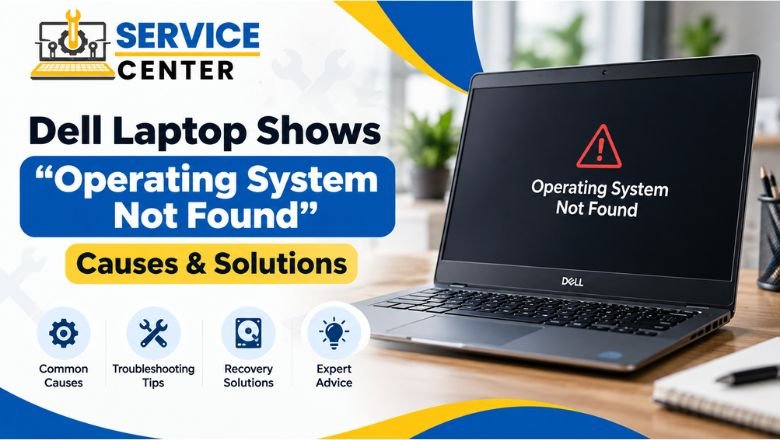
If your Dell laptop displays the message “Operating System Not Found” when you turn it on, it means the system cannot locate or load a bootable operating system. This can happen because of incorrect BIOS boot settings, an undetected SSD or hard drive, or damaged Windows boot files.
The Dell laptop operating system not found issue can prevent you from accessing your files, applications, and desktop. Fortunately, some causes can be resolved through basic troubleshooting, while others require professional diagnosis.
In this guide, we explain the common causes, practical solutions, and signs that your Dell laptop may need repair. Dell Laptop Service Center can also help diagnose boot failures and related hardware problems.
What Does “Operating System Not Found” Mean on a Dell Laptop?
An operating system is the software that allows your laptop to start and run applications. When your Dell laptop shows this error, its firmware may be unable to find a valid boot device or locate the files needed to start Windows.
The error does not automatically mean that Windows has been deleted. It may indicate an incorrect boot sequence, an SSD or hard drive detection problem, or damaged boot configuration files. Dell and Microsoft troubleshooting guidance recommends identifying which stage of startup is failing before attempting repairs.
Common Causes of the Dell Laptop Operating System Not Found Error
Understanding the cause helps you choose the right troubleshooting method.
1. Incorrect BIOS Boot Sequence
Your Dell laptop uses BIOS or UEFI firmware to identify a bootable device and begin startup. If the boot order is incorrect or the expected Windows Boot Manager entry is missing, the laptop may fail to load the operating system.
2. SSD or Hard Drive Not Detected
If the internal SSD or hard drive is not detected, the laptop cannot access the installed operating system. Possible reasons include a loose connection, a failing drive, or a hardware fault.
3. Corrupted Windows Boot Files
Windows depends on boot configuration data and other startup files. If these files become damaged or missing, your laptop may display an operating system error instead of loading Windows. Microsoft identifies corrupted boot configuration data and damaged boot files as possible causes of startup failures.
4. Incorrect BIOS Settings
Changes to firmware settings, including boot mode or storage configuration, may affect how the laptop identifies its operating system. Incorrect settings can prevent the system from starting even when Windows is still present on the drive.
5. Failed Windows Update or System Changes
An interrupted update, unsuccessful system change, or unexpected shutdown can sometimes affect Windows startup. If the problem began after an update or repair, recovery tools may help restore the startup process.
How to Fix Dell Laptop Operating System Not Found
Try these solutions in order, beginning with the least disruptive checks.
Solution 1: Disconnect External Devices
Sometimes, the laptop attempts to start from an external storage device instead of its internal drive.
- Turn off your Dell laptop.
- Disconnect USB drives, external hard drives, memory cards, and other unnecessary peripherals.
- Turn the laptop on again.
- Check whether Windows starts normally.
If the error disappears, an external device or boot selection may have caused the problem.
Solution 2: Check BIOS or UEFI Settings
Incorrect boot settings are one possible reason your Dell laptop cannot locate Windows.
- Restart your Dell laptop.
- Press F2 repeatedly when the Dell logo appears to enter BIOS setup, if supported by your model.
- Look for the storage information and boot configuration sections.
- Check whether the internal SSD or hard drive is detected.
- If available, confirm that Windows Boot Manager is listed as a boot option.
- Save changes only when you have identified an appropriate correction.
Avoid changing multiple firmware settings at once. Do not switch between UEFI and Legacy boot modes without understanding your existing configuration, as this may make Windows unbootable.
Solution 3: Run Dell Hardware Diagnostics
If your Dell laptop boot device not found message persists, check whether the internal storage device is functioning correctly.
Many Dell laptops support built-in preboot diagnostics, which can be accessed through the F12 one-time boot menu and the available diagnostics option.
Run the available tests and note any error codes displayed. If the SSD or hard drive is not detected, or the diagnostic reports a storage failure, the device may require professional inspection or replacement.
If your drive contains important files, avoid unnecessary repair attempts that could worsen data loss.
Solution 4: Run Windows Startup Repair
If the storage drive is detected but Windows still does not start, damaged boot files may be responsible.
Microsoft’s Startup Repair tool can diagnose and attempt to fix certain problems involving missing system files, damaged boot configuration data, and other startup errors.
To use it:
- Access the Windows Recovery Environment using the available recovery options or Windows installation media.
- Select Troubleshoot.
- Open Advanced options.
- Choose Startup Repair.
- Follow the instructions on the screen.
You may need your BitLocker recovery key if the device is encrypted. Startup Repair cannot resolve every problem, particularly a physically failing storage drive.
Solution 5: Check the Windows Boot Configuration
If Startup Repair does not resolve the problem, damaged boot configuration data may require further troubleshooting.
Advanced users or technicians can use Windows recovery tools to inspect and repair boot configuration files. The correct procedure depends on whether the laptop uses UEFI or Legacy BIOS, its partition layout, and the Windows installation.
Avoid running boot repair commands without identifying the correct Windows and system partitions. Incorrect commands can make recovery more difficult. If you are unsure, seek technical assistance before making changes.
Solution 6: Consider Windows Recovery or Reinstallation
If the storage drive is healthy but Windows cannot be repaired, a recovery procedure or Windows reinstallation may be necessary.
Before proceeding, back up important files wherever possible. Reinstallation can remove applications, settings, or personal data depending on the method selected. If the drive is failing, prioritise data recovery rather than repeatedly attempting to reinstall Windows.
When Should You Contact a Dell Laptop Service Center?
Consider professional assistance if:
- Your laptop cannot detect its internal SSD or hard drive.
- The operating system error continues after checking boot settings.
- Dell diagnostics reports a hardware failure.
- Startup Repair cannot resolve the problem.
- Your laptop makes unusual drive noises, freezes frequently, or has experienced physical damage.
- You need to recover important files before repairing or replacing the drive.
A technician can inspect the storage device, firmware settings, boot configuration, and Windows installation to determine the most suitable repair.
Dell Laptop Repair Services at Affordable Prices
If your Dell laptop displays an operating system error and basic troubleshooting has not helped, a professional diagnosis can prevent unnecessary component replacement.
Dell Laptop Service Center offers assistance with laptop boot issues, SSD and hard drive problems, Windows startup failures, and other hardware or software concerns. Out-of-warranty repair with affordable prices, depending on the fault and required parts.
Before approving a repair, ask for the diagnosis, estimated cost, and expected repair time. If your data is important, explain your recovery requirements before authorising any action that could erase the drive.
For repair, call: +91 9891868324 or +91 8860510848
Contact the service team to discuss your Dell laptop problem and the available repair options.
Frequently Asked Questions
1. How do I access the boot menu on a Dell laptop?
Restart your Dell laptop and press F12 repeatedly when the Dell logo appears. If supported, the one-time boot menu lets you access diagnostics and available boot devices.
2. Why is Windows Boot Manager missing from my Dell laptop BIOS?
Windows Boot Manager may be missing because of firmware configuration changes, damaged boot files, or an undetected storage drive. Check drive detection and boot settings before attempting repairs.
3. Can a BIOS update cause an operating system not found error?
Firmware changes can sometimes affect boot settings or compatibility. If the problem starts after a BIOS update, check the manufacturer’s recommended recovery steps for your specific Dell model.
4. How can I prevent the operating system not found error on my Dell laptop?
Keep important files backed up, avoid changing BIOS settings unnecessarily, install updates carefully, and investigate recurring startup warnings before they develop into more serious problems.
5. How much does it cost to repair a Dell laptop boot failure?
Repair costs depend on whether the issue involves boot configuration, Windows recovery, an SSD, or another hardware component. Request a diagnosis and quotation before approving the repair.
6. Should I replace my SSD if my Dell laptop cannot detect it?
Not immediately. Check BIOS detection and run Dell’s available hardware diagnostics first. If the drive remains undetected or fails testing, a technician can determine whether repair or replacement is necessary.
7. Can a corrupted SSD cause an operating system not found message?
Yes. A failing SSD or damaged boot information can prevent Windows from starting. If the drive contains important files, prioritise data recovery before attempting formatting or reinstalling Windows.
8. When should I contact a Dell Laptop Service Center?
Contact a technician if your laptop repeatedly displays the error, the internal drive is not detected, hardware diagnostics fail, or Windows recovery tools cannot restore startup functionality.
Conclusion
The Dell laptop operating system not found error can result from incorrect boot settings, storage detection problems, or damaged Windows startup files. Start with basic checks, confirm whether the internal drive is detected, and use appropriate recovery tools when necessary.
If the issue persists, professional diagnosis can help identify the underlying fault and reduce the risk of unnecessary repairs or data loss.
For assistance with your Dell laptop, contact Dell Laptop Service Center at +91 9891868324 or +91 8860510848 to discuss troubleshooting and repair options.
References
- https://www.dell.com/support/kbdoc/en-in/000124359/dell-computer-does-not-boot-to-windows-10
- https://www.dell.com/support/contents/en-us/article/product-support/self-support-knowledgebase/fix-common-issues/no-boot
- https://support.microsoft.com/en-us/windows/experience/startup-boot/startup-repair
- https://learn.microsoft.com/en-in/troubleshoot/windows-client/performance/windows-boot-issues-troubleshooting
Author Bio
Hello, I’m Pooja. I write technology-focused content that helps readers understand laptop repair, hardware issues, software problems, and maintenance tips. Every article I create is carefully researched and reviewed with insights from experienced laptop technicians, ensuring the information is accurate, practical, and easy to follow. I believe in sharing clear, reliable guidance that helps users troubleshoot problems and keep their laptops running smoothly.