
Dell Laptop Stuck on Preparing Automatic Repair: Causes & Fixes

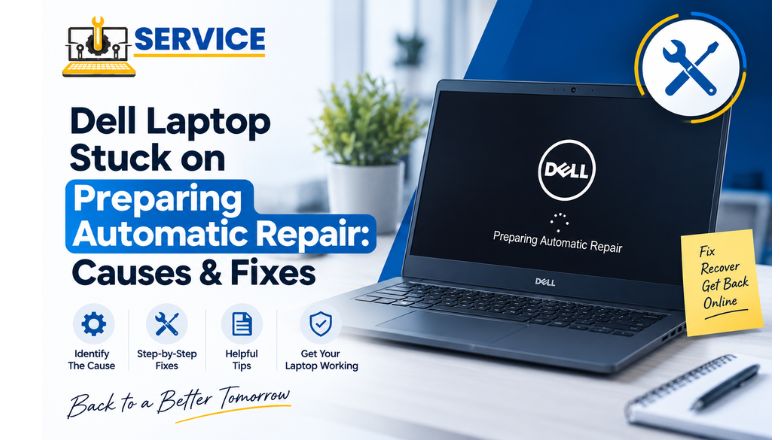
Seeing “Preparing Automatic Repair” on your Dell laptop can be worrying, especially when the screen stays there for a long time or keeps restarting without reaching the Windows desktop. In many cases, this indicates that Windows has detected a problem during startup and is trying to recover automatically.
The good news is that this does not always mean your Dell laptop has a major hardware failure. Problems such as corrupted system files, a failed Windows update, damaged boot configuration, incompatible drivers, or storage-related errors can all prevent Windows from starting normally.
In this guide, we explain why your Dell laptop stuck on preparing automatic repair problems and what you can try before taking the laptop for professional repair.
What Does “Preparing Automatic Repair” Mean on a Dell Laptop?
Automatic Repair is a Windows recovery feature designed to diagnose and repair certain startup problems. When Windows cannot start correctly after one or more attempts, it may enter the Windows Recovery Environment (WinRE) and display messages such as “Preparing Automatic Repair” or “Diagnosing your PC.”
Normally, the process should eventually move to another screen where you can restart the computer or access Advanced Options.
However, if your Dell laptop remains on the same screen for an unusually long time or repeatedly returns to it, you may be experiencing a Dell preparing automatic repair loop.
Why Is My Dell Laptop Stuck on Preparing Automatic Repair?
There isn’t one single cause. The problem can originate from Windows software, startup configuration, drivers, or even the laptop’s storage hardware.
1. Corrupted Windows System Files
Windows relies on many system files to start correctly. If important files become corrupted because of an interrupted update, improper shutdown, malware, or another software problem, Windows may fail during startup.
Microsoft’s Startup Repair tool is designed to address certain startup problems involving missing or damaged system files.
2. Damaged Boot Configuration
Windows uses boot configuration data to determine how the operating system should start. If this information becomes corrupted, the laptop may fail to boot and repeatedly enter recovery mode.
This can result in a Dell laptop automatic repair loop, where Windows attempts recovery but never successfully reaches the desktop.
3. Failed or Interrupted Windows Update
Sometimes a Windows update does not complete properly. The laptop may then encounter problems during its next startup.
If the problem began immediately after an update, uninstalling the latest update through Windows Recovery Environment may be worth trying. Microsoft lists uninstalling updates as one of the recovery options for PCs that cannot start normally.
4. Driver or Software Conflicts
A recently installed or updated driver can sometimes interfere with Windows startup. Startup Settings in Windows Recovery Environment allows you to start Windows in Safe Mode, which loads Windows with a limited set of drivers and services.
5. SSD or Hard Drive Problems
The problem isn’t necessarily Windows itself. If the SSD or hard drive has errors, bad sectors, connection problems, or is beginning to fail, Windows may struggle to read the files required during startup.
This is particularly important if you have also noticed slow performance, unusual noises from an older hard drive, freezing, missing files, or other storage-related symptoms.
How to Fix Dell Laptop Stuck in Automatic Repair
Before trying advanced solutions, give the laptop some time if the process has just started. If it remains stuck or repeatedly restarts, work through the following options.
1. Restart the Dell Laptop
If the Automatic Repair screen provides a Restart option, try it once.
A temporary startup failure can sometimes be resolved after another restart. If the same screen immediately appears again, continue with the recovery options rather than repeatedly restarting the machine.
2. Open Advanced Options
When Windows enters Automatic Repair, select Advanced options.
You should see the Windows Recovery Environment, where several troubleshooting tools are available. Depending on your Windows version and configuration, these can include Startup Repair, System Restore, Startup Settings, Command Prompt, uninstall updates, and Reset this PC.
3. Run Startup Repair
Go to:
Troubleshoot → Advanced options → Startup Repair
Startup Repair automatically checks for certain problems that may be preventing Windows from starting, including damaged system files, boot configuration problems, incompatible drivers, and some registry-related issues.
Allow the process to complete without interrupting the laptop.
4. Try Safe Mode
If Startup Repair doesn’t solve the problem, try Safe Mode.
Go to:
Troubleshoot → Advanced options → Startup Settings → Restart
After the laptop restarts, select Safe Mode.
If Windows starts successfully in Safe Mode, the problem may be related to a recently installed driver, application, update, or other startup component. You can then investigate recent changes and remove or roll back the suspected software.
5. Try System Restore
If System Restore is available and you have a suitable restore point, you can return system files and settings to an earlier state.
This can be useful when the problem appeared after installing software, drivers, or an update. System Restore is designed to roll back system files and settings without removing personal files.
6. Uninstall a Recent Windows Update
If the Dell laptop automatic repair problem started after Windows installed an update, try:
Troubleshoot → Advanced options → Uninstall Updates
Windows provides recovery options for removing certain recent updates when they are suspected of causing startup problems.
7. Check for a Hardware Problem
If Windows recovery tools repeatedly fail, don’t assume that reinstalling Windows is the only answer.
The SSD, hard drive, RAM, or another hardware component may need to be checked. Dell laptops also provide built-in hardware diagnostics on many models, which can help identify hardware faults.
If diagnostics report a storage or memory error, professional inspection is recommended before attempting a Windows reset or reinstall.
What If Dell Automatic Repair Is Not Working?
If Dell automatic repair not working continues after Startup Repair, Safe Mode, System Restore, and update recovery options, the underlying problem may be more serious.
For example, persistent boot failure can be associated with significant Windows corruption or a storage device that is developing faults. At this stage, repeatedly forcing the laptop to restart is unlikely to solve the root problem.
If important files are stored on the laptop, be especially careful before selecting Reset this PC or reinstalling Windows. Microsoft recommends backing up important files before using recovery options because some recovery methods can result in data loss.
If BitLocker encryption is enabled, some Windows Recovery Environment tools may also require the BitLocker recovery key.
When Should You Get Professional Dell Laptop Repair?
You should consider professional assistance if:
- The laptop continuously returns to Automatic Repair.
- Startup Repair cannot resolve the issue.
- The SSD or hard drive is not detected.
- Hardware diagnostics report an error.
- Windows cannot start even in Safe Mode.
- You have important data that you don’t want to risk losing.
- The laptop started showing the problem after a sudden shutdown or hardware issue.
A technician can first identify whether the problem is caused by Windows, boot configuration, drivers, or hardware before recommending a repair or reinstall.
Dell Laptop Repair Service at Your Doorstep
If your Dell laptop is stuck on preparing automatic repair issue isn’t resolved with the basic troubleshooting steps, you can consider professional laptop repair.
Dell Laptop Service Center provides out-of-warranty Dell laptop repair services at your doorstep at an affordable price. We are an independent repair service and not an authorised Dell service center.
Before carrying out major software recovery or hardware work, the appropriate approach is to diagnose the underlying issue rather than immediately resetting the laptop.
Call for Dell laptop repair service: 9891868324 | 8860510848
Final Thoughts
A Dell preparing automatic repair loop can be caused by anything from damaged Windows files and failed updates to boot configuration errors or storage problems. The safest approach is to start with less disruptive recovery options such as Startup Repair, Safe Mode, System Restore, or uninstalling a recent update.
If these options don’t work, professional diagnosis can help determine whether you are dealing with a Windows problem or a hardware fault. Most importantly, if your laptop contains important files, avoid rushing into a reset or clean Windows installation before considering data recovery and backup.
Frequently Asked Questions
1. Why does my Dell laptop keep going back to Preparing Automatic Repair?
This usually happens when Windows cannot complete the startup process. Corrupted system files, damaged boot configuration, problematic drivers, or storage errors can cause the system to repeatedly enter the Automatic Repair process.
2. How do I get out of the Preparing Automatic Repair screen on a Dell laptop?
Try accessing Advanced Options and running Startup Repair. If that doesn’t help, Safe Mode, System Restore, or other Windows Recovery Environment options may help identify and resolve the startup problem.
3. Can I fix the Dell Automatic Repair loop without reinstalling Windows?
Yes. Reinstalling Windows is not always necessary. Depending on the cause, Startup Repair, Safe Mode, System Restore, uninstalling a recent update, or repairing boot configuration may resolve the issue.
4. Why is my Dell laptop showing “Diagnosing your PC” after Automatic Repair?
“Diagnosing your PC” is another stage of Windows’ recovery process. Windows is checking the system for startup-related problems before presenting available repair or recovery options.
5. Can a full SSD cause a Dell laptop to enter Automatic Repair?
A nearly full system drive can contribute to Windows performance and update problems, although Automatic Repair can have many other causes. If the drive is consistently full or showing errors, checking its health is recommended.
6. How can I tell whether my Dell SSD is causing the Automatic Repair loop?
Look for additional symptoms such as extremely slow booting, frequent freezing, missing files, drive detection errors, or hardware diagnostic warnings. Dell’s built-in diagnostics can also help identify potential storage problems.
7. Should I force shut down my Dell laptop when it is stuck on Automatic Repair?
Avoid repeatedly forcing shutdowns. If the system is genuinely unresponsive and recovery isn’t progressing, a forced shutdown may sometimes be necessary, but repeated interruptions can potentially complicate an already damaged Windows installation.
8. Can corrupted BCD cause the Dell Automatic Repair screen to appear?
Yes. Damaged or incorrect Boot Configuration Data (BCD) can prevent Windows from locating or loading the operating system correctly and may result in startup recovery attempts.
9. Does Safe Mode help identify the cause of a Dell Automatic Repair loop?
It can. If Windows successfully starts in Safe Mode, it may indicate that a recently installed driver, application, update, or startup component is contributing to the normal boot problem.
10. What should I do if my Dell laptop is stuck in Automatic Repair and I have important files?
Avoid immediately resetting or reinstalling Windows. If the files are important, consider backing up or recovering the data first, particularly if there are signs that the SSD or hard drive may be failing.
References
- https://support.microsoft.com/en-us/windows/experience/startup-boot/startup-repair
- https://support.microsoft.com/en-us/windows/experience/backup-recovery/recovery-options-in-windows
- https://support.microsoft.com/en-us/windows/experience/backup-recovery/windows-recovery-environment
- https://support.microsoft.com/en-us/windows/experience/startup-boot/windows-startup-settings
- https://support.microsoft.com/en-us/windows/experience/backup-recovery/reset-your-pc
Author Bio
Hello, I’m Pooja. I write technology-focused content that helps readers understand laptop repair, hardware issues, software problems, and maintenance tips. Every article I create is carefully researched and reviewed with insights from experienced laptop technicians, ensuring the information is accurate, practical, and easy to follow. I believe in sharing clear, reliable guidance that helps users troubleshoot problems and keep their laptops running smoothly.