Why You Are Facing Laptop Display Problem and How to Fix It

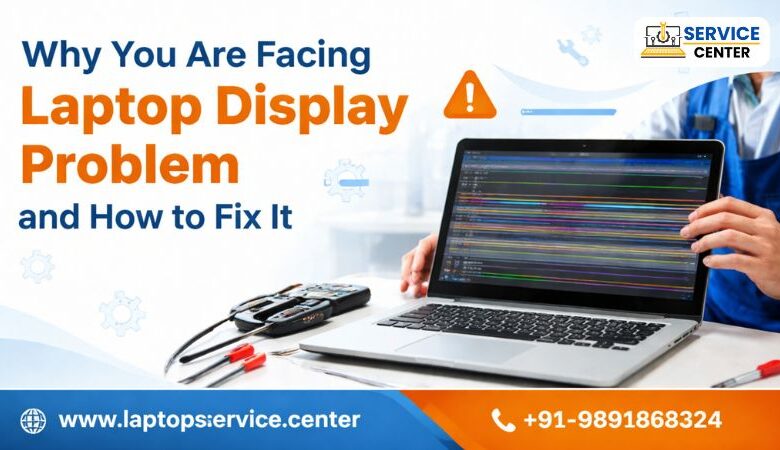
A Laptop Display Problem is one of the most frustrating issues users face today. Whether you use your laptop for work, study, or entertainment, a faulty display can disrupt everything. From flickering screens to complete blackouts, display issues can occur due to multiple reasons. Understanding the root cause and knowing how to fix it can save both time and money.
In this blog, we will explore the common causes of laptop display problems and the best ways to fix them effectively.
Common Laptop Display Problems
Before jumping into solutions, it’s important to identify the type of issue you are facing. Some of the most common laptop display problems include:
- Blank or black screen
- Screen flickering
- Dim display or brightness issues
- Lines or patches on the screen
- Distorted or blurry visuals
- Dead pixels
- Screen freezing
Each of these issues can have different causes, which we will discuss below.
Reasons Behind Laptop Display Problem
1. Loose or Damaged Display Cable
One of the most common causes of a laptop display problem is a loose or damaged internal display cable. This internal cable links the laptop’s motherboard with its display panel, enabling the screen to receive signals and function properly. If it gets damaged due to wear and tear or accidental drops, it can result in flickering or no display.
2. Faulty Graphics Driver
Outdated or corrupted graphics drivers can lead to display issues like screen flickering, resolution problems, or distorted visuals. Software-related issues are often easier to fix compared to hardware problems.
3. Physical Screen Damage
If your laptop has been dropped or hit, the screen might get physically damaged. Cracks, black spots, or colour bleeding are clear signs of physical damage.
4. Overheating Issues
Excessive heat can affect internal components, including the GPU. Overheating can cause screen freezing, flickering, or even sudden shutdowns.
5. Faulty Graphics Card (GPU)
If your laptop’s GPU is failing, you may notice unusual lines, distorted graphics, or no display at all. This is a serious hardware issue that often requires professional repair.
6. Backlight Failure
If your screen appears very dim or almost invisible, the backlight might be faulty. You may still see faint images, which indicates that the display panel is working, but the lighting system is not.
7. Power Supply Issues
Insufficient or unstable power supply can also lead to display problems. This may happen due to a faulty charger, battery issues, or motherboard problems.
How to Fix a Laptop Display Problem
Now that you know the causes, let’s look at practical solutions to fix your laptop display problem.
1. Restart Your Laptop
Sometimes, the issue is temporary and can be resolved with a simple restart. It refreshes system processes and may fix minor glitches.
2. Check External Display
You can link your laptop to an external monitor or television using an HDMI or VGA cable to check if the display issue persists.
- If the external display works fine, → The issue is with your laptop screen
- If not, → The problem could be the GPU or the motherboard
3. Update or Reinstall Graphics Drivers
Outdated drivers are a common cause of display problems.
Steps:
- Go to Device Manager
- Find Display Adapters
- Update or reinstall the driver
This can fix flickering and resolution issues.
4. Adjust Display Settings
Incorrect display settings can also create issues.
- Check screen resolution
- Adjust refresh rate
- Reset display settings to default
5. Inspect for Physical Damage
If you notice cracks, black spots, or lines, your screen may need replacement. In such cases, DIY fixes are not recommended.
6. Check for Loose Connections
If your laptop display flickers when you move the screen, it might be a loose cable issue. This requires opening the laptop, so it’s better handled by professionals.
7. Clean Overheating Components
Overheating can be fixed by:
- Cleaning internal fans
- Using a cooling pad
- Ensuring proper ventilation
8. Perform a Power Reset
A power reset can resolve many hardware glitches.
Steps:
- Turn off the laptop
- Remove battery (if removable)
- Hold the power button for 15–20 seconds
- Restart the laptop
9. BIOS Reset
Sometimes, BIOS settings can interfere with display functionality.
- Enter BIOS setup
- Reset to default settings
10. Seek Professional Help
If none of the above solutions works, it’s time to consult experts. Hardware issues like GPU failure, motherboard damage, or screen replacement require professional tools and expertise.
Why Choose Professional Repair Services?
Trying to fix complex display issues yourself can sometimes worsen the problem. Choosing a professional repair service ensures:
- Accurate diagnosis
- Safe handling of components
- Long-lasting solutions
- Time-saving repairs
Dell Laptop Service Centre – Trusted Solution
If you are facing any laptop display problem, the Dell Laptop Service Centre is your reliable partner. We provide:
- Affordable services
- Doorstep Services
- Out-of-Warranty repair service
- Multi-brand service support (HP, Lenovo, Apple, Samsung, Acer, Asus)
Our experienced technicians can quickly identify the issue and provide the best solution, whether it’s screen replacement, motherboard repair, or driver troubleshooting.
Contact Details
Mobile: +91-9891868324 | +91-8860510848
Get your laptop repaired quickly and efficiently with expert support.
Tips to Prevent Laptop Display Problems
Prevention is always better than repair. Follow these tips to avoid future display issues:
- Handle your laptop carefully
- Avoid closing the lid with pressure
- Keep your laptop clean and dust-free
- Update drivers regularly
- Use a cooling pad to prevent overheating
- Refrain from placing your laptop on soft surfaces like beds
Conclusion
A Laptop Display Problem can arise due to both hardware and software issues. While minor problems can be fixed easily at home, serious issues require professional assistance. Identifying the cause early and taking the right steps can help prevent further damage to your device.
If your laptop screen is not working properly, don’t wait. Reach out to the Dell Laptop Service Centre today and get expert solutions at affordable prices.
Find us on Google – BSS Laptop Repair Centre